
Count as much or as little as you like
A few fast-moving items this week, one category next week, the whole store at year end.
Included in the Enterprise plan
Book stock and shelf stock drift apart through damage, miscounts and unrecorded issues. Count a few products, a whole category or an entire store, explain every difference, and have an owner approve the correction before it posts to stock and to the ledger.
eSolverBooks / Inventory / Stock counts
How it works
A practical workflow your team can follow without adding disconnected spreadsheets or repeated data entry.
Choose a store and what to count: selected products, a category with its sub-categories, everything the store holds, or every active stock product.
Book quantities are frozen at that moment, and draft counts do not change inventory.
Record the physical quantity per line, marking Matches where it agrees. Give a reason wherever it differs.
An owner or administrator reviews the differences and value impact, then approves. The correction posts to stock and to the books.
What you get
Inventory value you can defend to an auditor, differences with named reasons, and no silent adjustments.
A few fast-moving items this week, one category next week, the whole store at year end.
System quantities are snapshotted when the count begins, so late movements do not corrupt the comparison.
Each differing line needs a reason such as damaged, expired or miscounted.
With maker-checker on, the person who submitted the count cannot approve it. Another owner or administrator must.
See the estimated net value of the differences in BDT before anything posts.
Optionally pause stock movement of the counted products until the count is posted, so figures stay still.
Feature details
Understand the main workflow, what belongs inside it and how each capability supports accurate daily work.
Main feature item
Decide scope before anyone walks the floor.
What it includes
4 connected capabilities designed to keep this part of stock counts & reconciliation organized.
Included sub-items
Counts are made per warehouse or store, such as the raw material store or the finished goods warehouse.
Search by product name, SKU or barcode, or take everything in one category and its sub-categories.
Count every product a store holds, or every active stock product. Very large counts are split into parts.
Add notes for the counting team, such as which racks to cover and when.
Main feature item
From sheet to decision.
What it includes
4 connected capabilities designed to keep this part of stock counts & reconciliation organized.
Included sub-items
Enter the physical quantity for each product, with bin and batch where relevant.
Lines with differences, and the number counted against the total, are shown on the count.
Capture the explanation per line so the review is about causes, not guesses.
Lines you do not get to can be left out on submit; their stock stays as it is.
Main feature item
Corrections with control.
What it includes
4 connected capabilities designed to keep this part of stock counts & reconciliation organized.
Included sub-items
Only senior users approve and post the reconciliation, keeping stock write-offs under control.
On approval the correction posts to the stock ledger and to the accounts, so quantity and value stay aligned.
Send a submitted count back for correction, or cancel it without changing inventory.
If a counted product moved after the count started, posting is blocked and you start a fresh count.
Main feature item
Show your working.
What it includes
4 connected capabilities designed to keep this part of stock counts & reconciliation organized.
Included sub-items
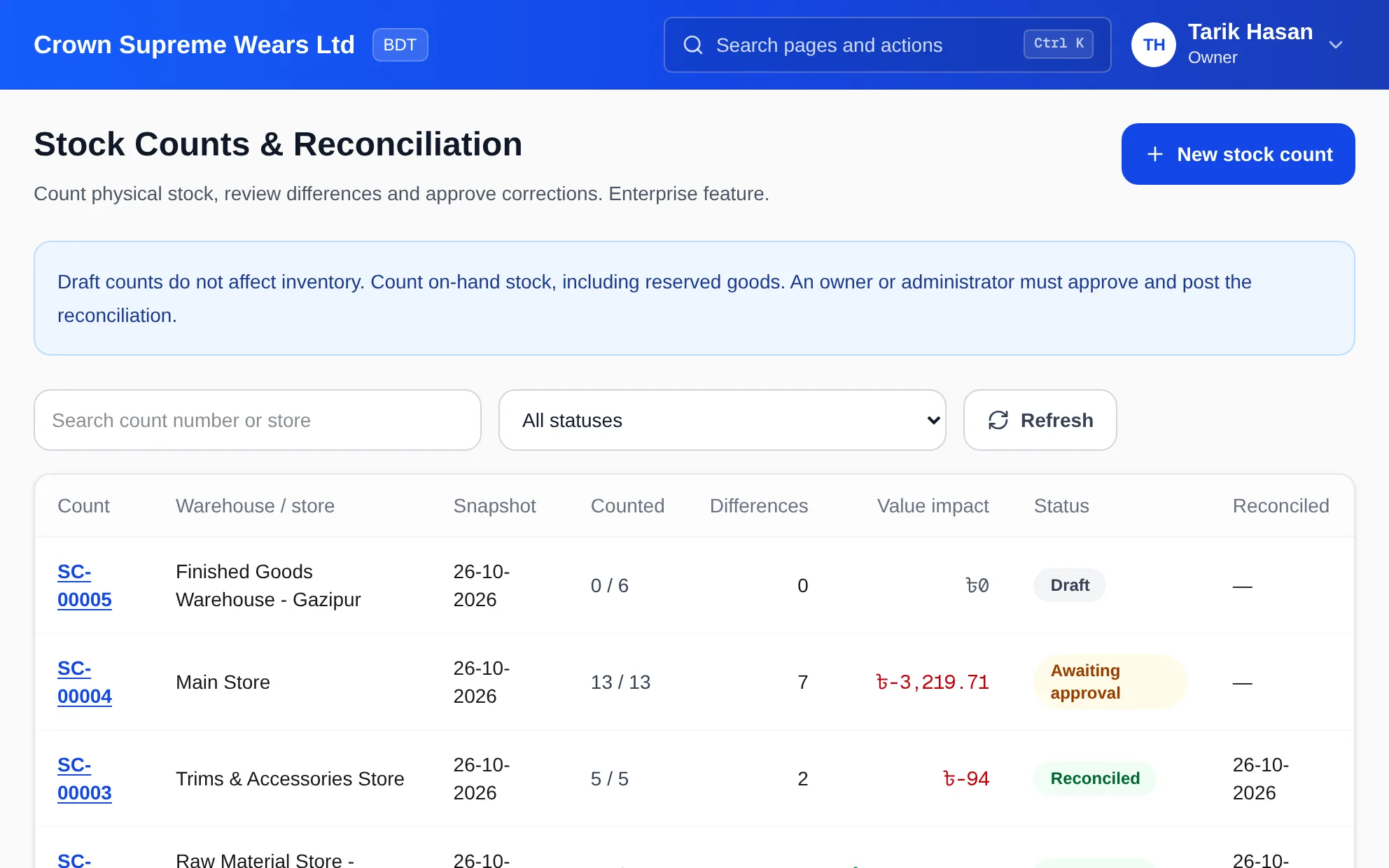
Every count with its store, snapshot date, lines counted, differences, value impact and status.
Reconciled counts stay on record with their date, so year-end verification is easy to evidence.
Corrected quantities flow into the stock valuation report that ties to the balance sheet.
Count reserved goods as part of physical stock, so reservations do not distort the result.
Accounting reference
This feature explanation is informed by recognized accounting and control guidance. Your configuration and filing obligations should still be reviewed for your organization and jurisdiction.
Keep exploring
Create a clearer workflow and give your team information they can understand and trust.