
Create accurate invoices and get paid with less chasing
Create professional BDT invoices with line items, discounts, tax, and delivery charges. Save a draft, review the details, and track the balance through payment.
From draft to sent
A clear path from your first line item
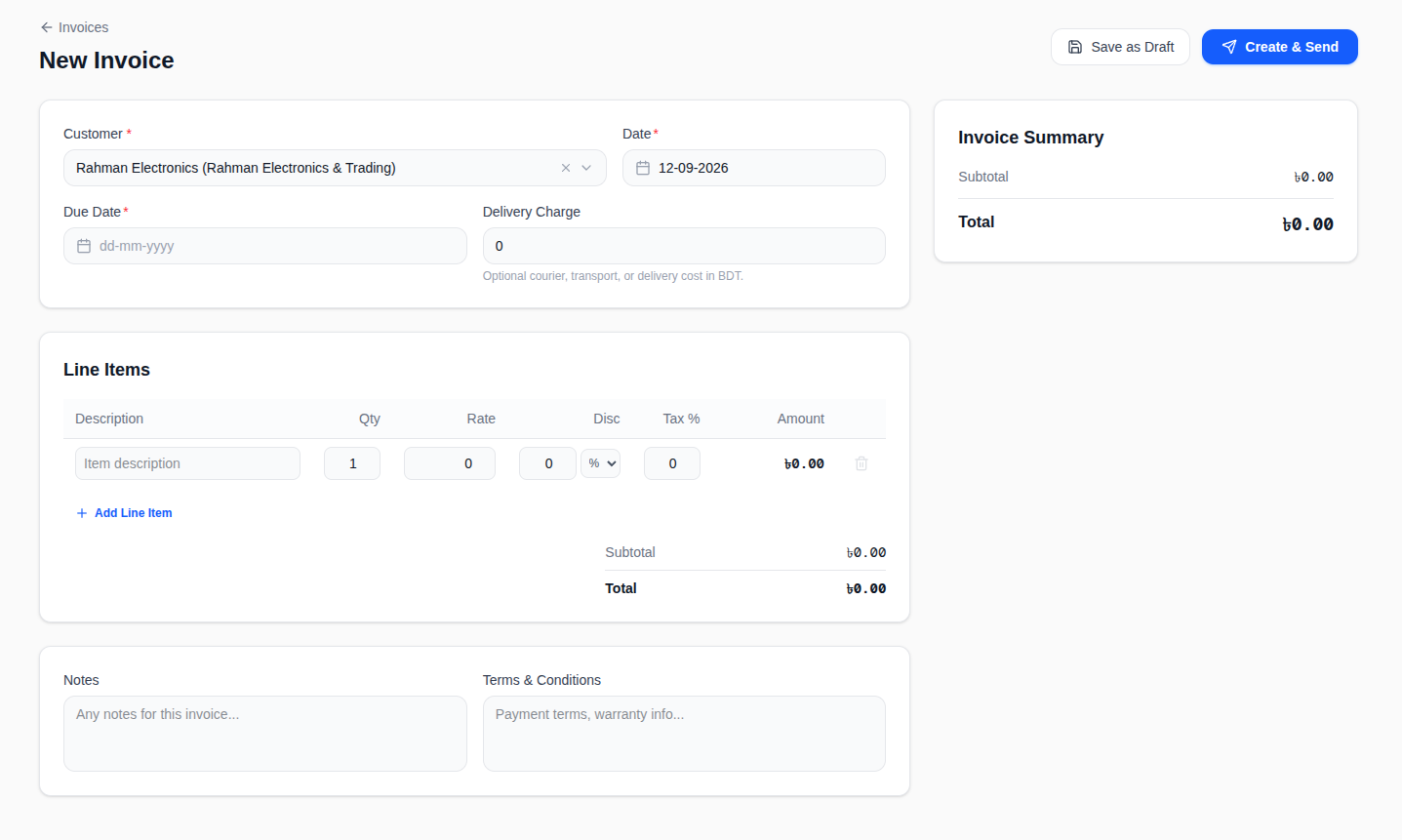
Choose a customer, add the details, and review your totals before you create the invoice.
- 01
Choose your customer
Select a saved customer and set the invoice date and due date.
- 02
Build your invoice
Add descriptions, quantities, rates, line discounts, and tax. Include delivery costs, notes, and terms.
- 03
Review and confirm
Check the customer, dates, item count, and totals in the confirmation dialog. Go back to edit if needed.
- 04
Save or create
Choose Save as Draft to return later, or Create & Send to create an invoice with Sent status.
The details, handled
Practical tools for everyday billing
From a simple service bill to a multi-item order, keep the amounts and customer details together.
Saved customers
Find an existing customer by name and keep each invoice linked to their customer record.
Line discounts and tax
Set a percentage or fixed discount on each line and enter its tax percentage. Totals calculate as you work.
Delivery charges included
Add courier, transport, or delivery costs in BDT. The charge appears separately in your invoice summary.
Notes and payment terms
Include invoice notes, payment terms, or warranty information in dedicated fields.
Drafts you can come back to
Save your invoice as a draft, edit it from the detail page, and use Send & Post when it is ready.
Full and partial payments
Open Record Payment from an unpaid invoice. Keep the amount paid and remaining balance visible.
Every balance in view
Know what’s sent. See what’s still due.
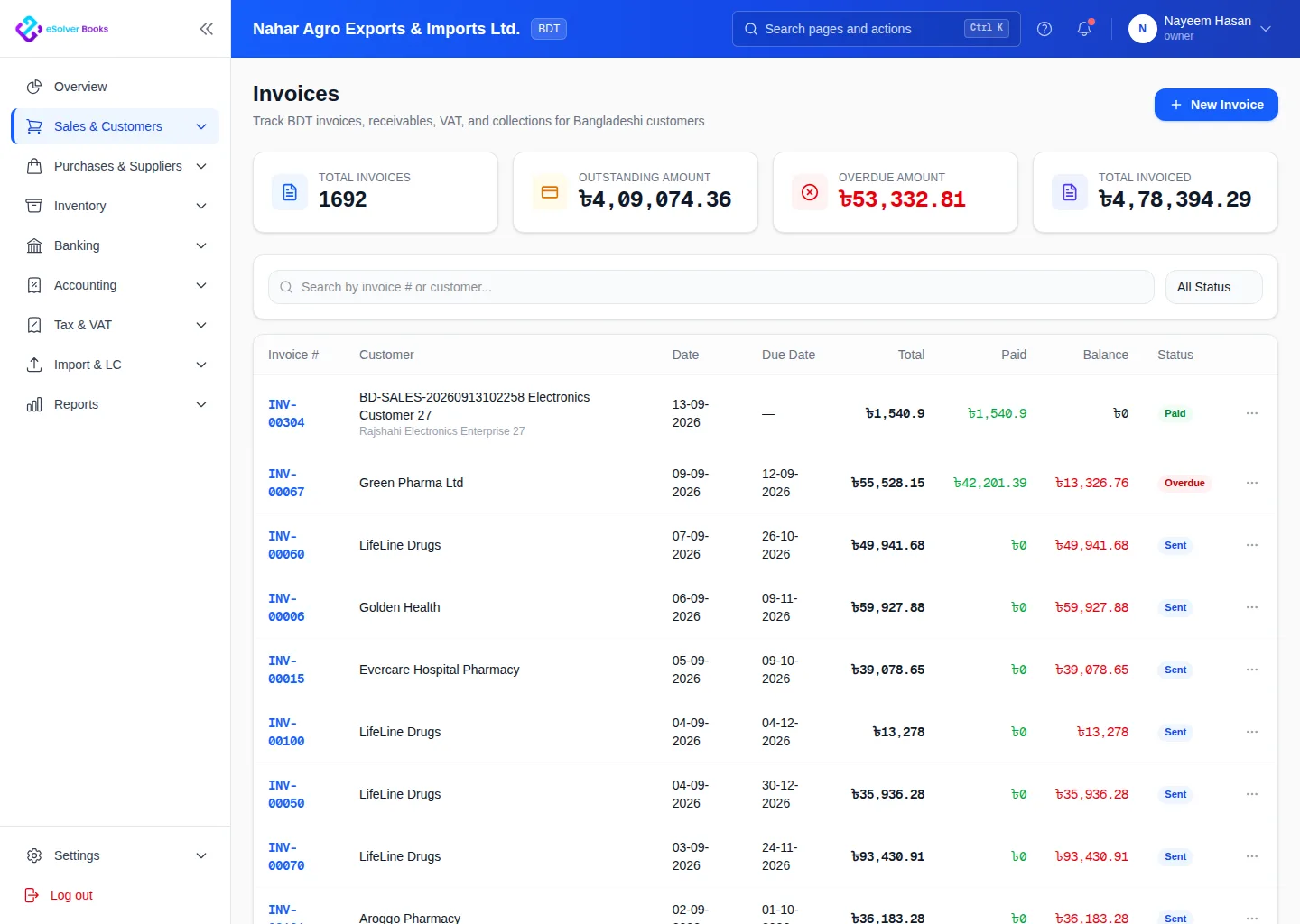
Search by invoice number or customer and filter by status. Review invoice totals, payments, and remaining balances in one list.
The overview brings together total invoices, outstanding amount, overdue amount, and total invoiced, so you can see where to focus your follow-up.
Review every invoice
Customer, items, and totals in one place
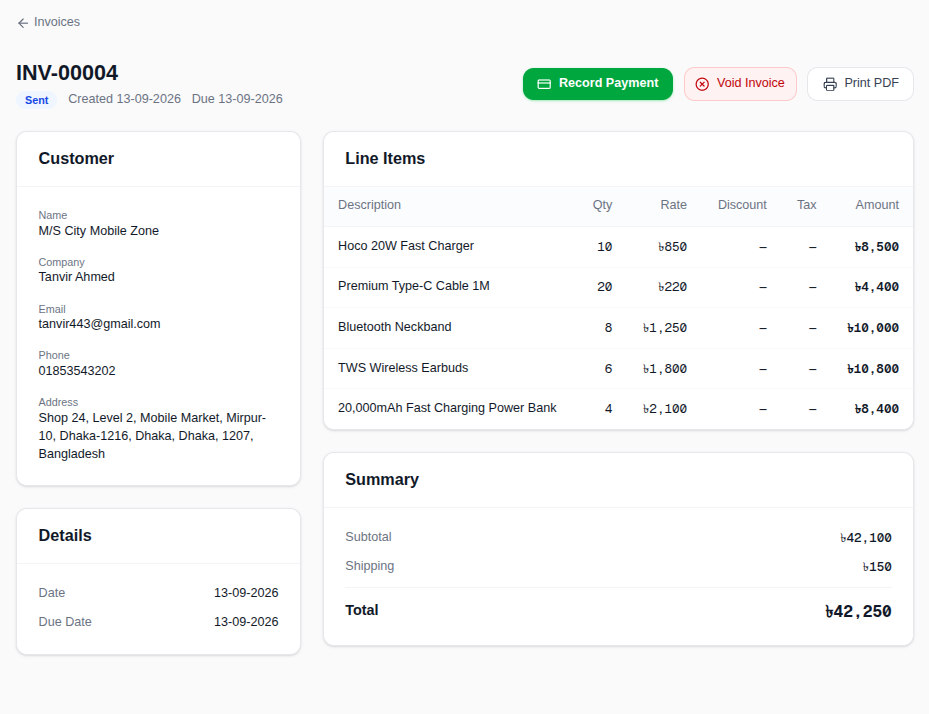
Open an invoice to review its status, invoice date, due date, and customer contact details alongside every line item.
- Check quantities, rates, discounts, and tax for each item
- See the subtotal, shipping charge, and final BDT total
- Start Record Payment or Print PDF from the invoice header
Ready to share
A clean invoice, down to the last detail
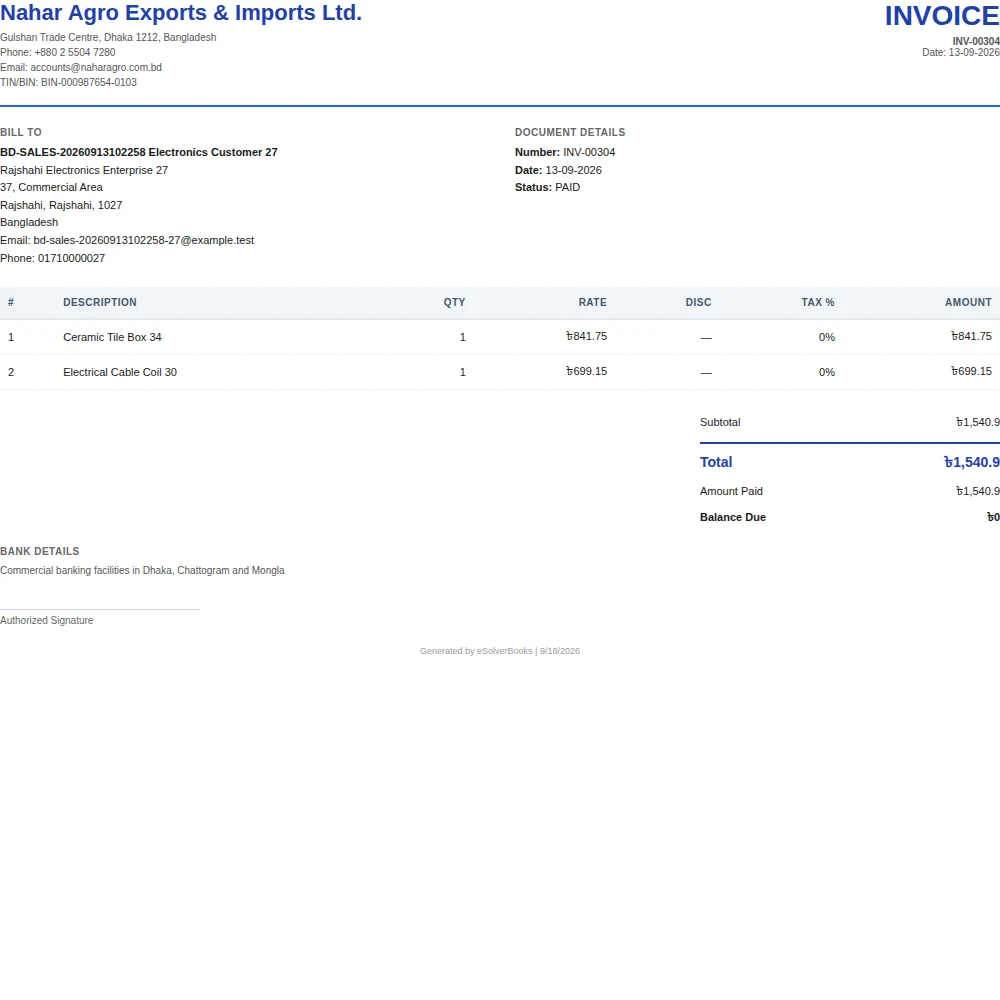
Give customers a clear document with your business name, billing details, invoice number, dates, item breakdown, and total.
- Itemized quantities, rates, discounts, and tax
- Delivery charge shown separately in the totals
- A4 printing from the invoice detail page
- Save a PDF using your browser’s print dialog
Open an invoice and select Print PDF to prepare a copy for your customer or your records.
Record customer payments
Connect each collection to the right invoices
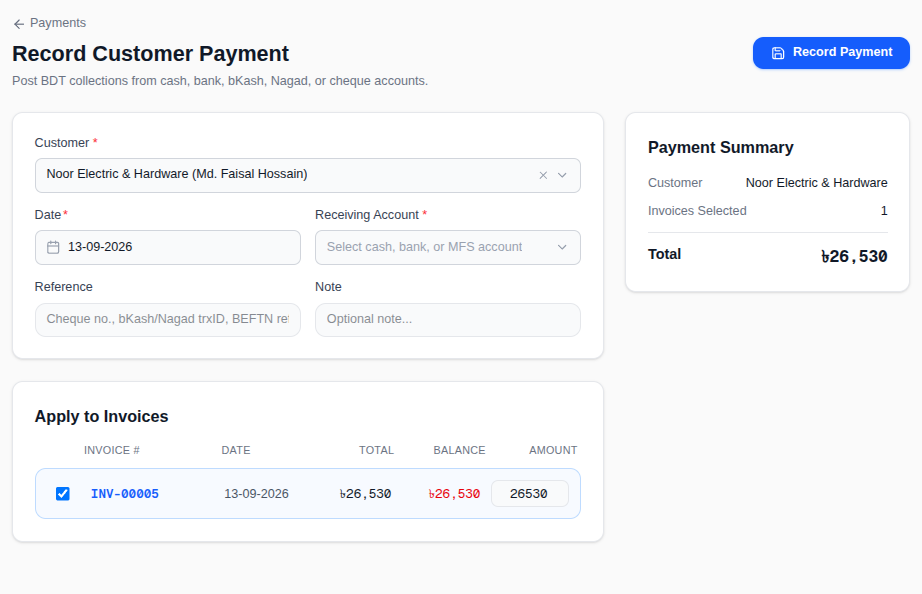
Record BDT collections from cash, bank, bKash, Nagad, or cheque accounts. Choose the customer and apply the payment to their outstanding invoices.
- 1
Choose the customer and date
Select the customer whose payment you received and set the payment date.
- 2
Select the receiving account
Choose the cash, bank, or mobile financial service account. Add a cheque number, bKash or Nagad transaction ID, or bank reference, plus an optional note.
- 3
Apply the amount to invoices
Select the invoices to settle and enter the amount against each one. Record a full balance or a partial payment.
- 4
Review and record
Check the customer, selected invoice count, and total in Payment Summary, then select Record Payment.
Frequently asked questions
A few things you might be wondering
Straightforward answers about creating, issuing, and tracking your invoices.
Can I save an invoice and finish it later?
Yes. Choose Save as Draft after completing the required customer, dates, and line items. Open the saved invoice and select Edit Draft to make changes, then Send & Post when ready.
What happens when I choose Create & Send?
You first review a confirmation with the customer, dates, line items, and totals. Confirming creates the invoice with Sent status and opens its detail page. An existing draft has a separate Send & Post action. Sent status is not an email delivery confirmation.
Can I add discounts, VAT, and delivery costs?
Yes. Each line supports a percentage or fixed discount and a tax percentage. Add a delivery charge separately; the summary includes it in the total. Invoice amounts are shown in BDT.
How do I print an invoice or save a PDF?
Open the invoice detail page and choose Print PDF. The A4 invoice opens in your browser’s print flow, where you can print it or select Save as PDF when supported by your browser.
Can I record a partial payment?
Yes. Use Record Payment on a sent, overdue, or partially paid invoice. The invoice shows the amount paid and the remaining balance so you can keep track of what is still owed.
How do I find unpaid or overdue invoices?
Use the status filter in the invoice list and search by invoice number or customer. The list includes the due date, total, paid amount, balance, and status, with an overdue amount summary above it.
Your next invoice starts here.
Create a draft, check the details, and keep every customer balance in view with eSolverBooks.