
Four providers
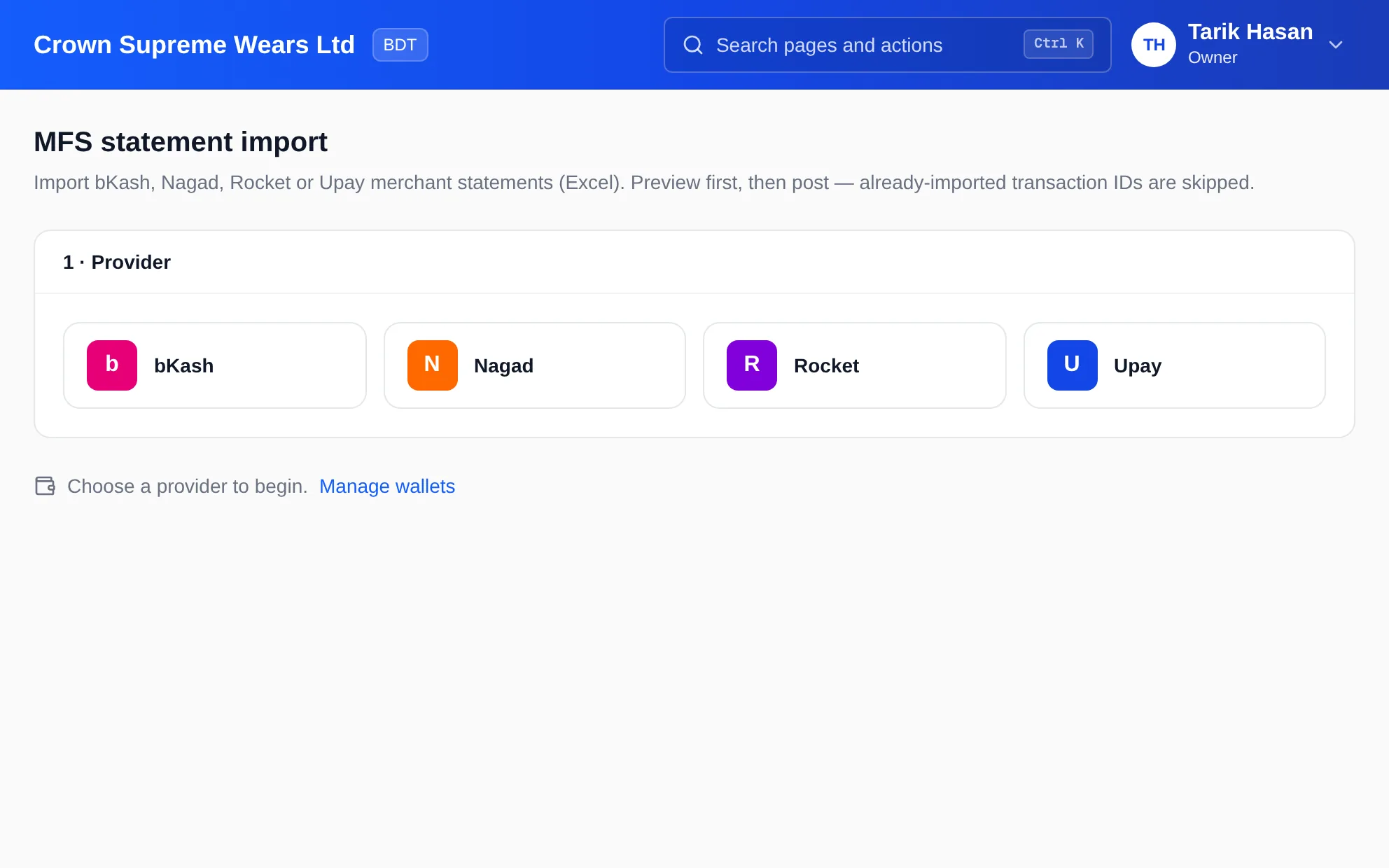
bKash, Nagad, Rocket and Upay merchant statements are supported.
Mobile wallets now carry a real share of collections and payments, but their statements rarely match anything in your ledger. Import the merchant statement as Excel, preview exactly what will be posted, then post it to the right accounts. Transactions already imported are skipped.
eSolverBooks / Banking / MFS statement import
How it works
A practical workflow your team can follow without adding disconnected spreadsheets or repeated data entry.
Pick bKash, Nagad, Rocket or Upay. The screen tells you where to download the Excel statement in that provider's merchant portal.
Choose the wallet account, the ledger for money received, the ledger for money paid out, and where fees should go.
Upload the file and see every transaction that will be posted, including which are new and which were already imported.
Post the new transactions. Settlements to your bank are booked as internal transfers.
What you get
Wallet balances that agree with the provider, fees recorded rather than forgotten, and no more retyping a month of transactions.
bKash, Nagad, Rocket and Upay merchant statements are supported.
Nothing is booked until you have seen the transactions and confirmed the mapping.
Already-imported transaction IDs are skipped, so re-uploading an overlapping month is safe.
Leave the fee account blank and MFS fees are booked to Bank Charges.
Money settled from the wallet to your bank is recorded as an internal transfer, not as income.
Bank statement and MFS import is on the Professional and Enterprise plans.
Feature details
Understand the main workflow, what belongs inside it and how each capability supports accurate daily work.
Main feature item
Tell the system where each side goes.
What it includes
4 connected capabilities designed to keep this part of bkash & nagad statement import organized.
Included sub-items
Select the wallet whose statement you are importing, kept as its own account beside cash and bank.
Credit money received to sales income or to a customer receivable, depending on how you sell.
Debit money paid out to an expense or to a supplier payable.
Choose where MFS charges go, or leave blank to use Bank Charges.
Main feature item
See before you commit.
What it includes
4 connected capabilities designed to keep this part of bkash & nagad statement import organized.
Included sub-items
Upload the .xlsx or .xls export from the provider's merchant portal.
Every transaction in the file is listed, with a summary of what will be posted.
Transactions already imported earlier are identified by ID and skipped.
A wrong file type, or a file with no transactions, is reported plainly.
Main feature item
Wallets that agree with reality.
What it includes
4 connected capabilities designed to keep this part of bkash & nagad statement import organized.
Included sub-items
Only new transactions are posted, with journal entries to the accounts you chose.
Choose a settlement bank account so wallet-to-bank transfers do not inflate income.
Compare the wallet account with the provider balance as a daily or monthly control.
Match the imported lines in bank reconciliation for a full audit trail.
Main feature item
Beyond import.
What it includes
4 connected capabilities designed to keep this part of bkash & nagad statement import organized.
Included sub-items
Share payment instructions that include a bKash number, and confirm customer claims into the wallet account.
Record expenses paid by bKash or Nagad directly in the expenses screen.
On Enterprise, counter sales can be paid by cash, bKash, Nagad, Rocket and bank in one sale.
Create and maintain wallet accounts from the same screen.
Keep exploring
Create a clearer workflow and give your team information they can understand and trust.