
Instructions your customers can copy
Include account numbers in your instructions so customers can copy them straight from the payment page.
Chasing payments by phone eats the accounts team's day. Share a secure payment page with your bank and bKash details, let customers tell you when they have paid, and send reminders by email, SMS or WhatsApp before and after the due date.
eSolverBooks / Sales / Collections settings
How it works
A practical workflow your team can follow without adding disconnected spreadsheets or repeated data entry.
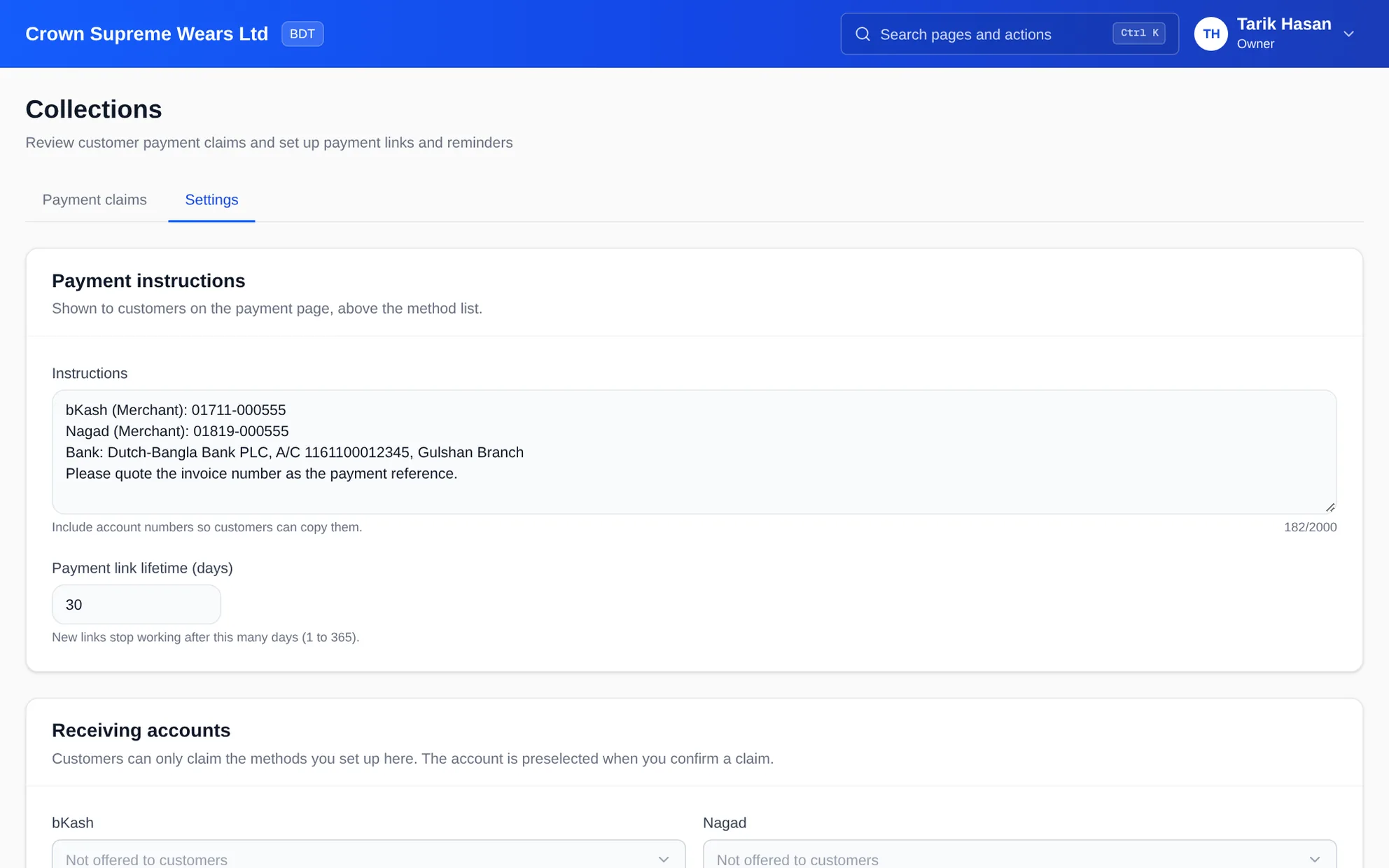
Write the payment instructions customers will see: bank account details, bKash or Nagad numbers, and how long links stay valid.
From any issued, unpaid invoice, create a secure payment link, copy it to share, or open WhatsApp with the reminder message already filled in.
The customer opens the page, sees your instructions and tells you they have paid. The claim lands in your Collections inbox.
Choose the account that received the money and confirm. The receipt is posted against the invoice. Reject a claim with a recorded reason if it is wrong.
What you get
Customers always know how to pay, your team confirms receipts in one inbox, and overdue invoices get a polite nudge without anyone remembering to send it.
Include account numbers in your instructions so customers can copy them straight from the payment page.
A claim is only a claim until you check the money arrived. Rejecting one posts nothing and keeps the reason.
Choose how many days before the due date, and how many days after an invoice becomes overdue, a reminder is sent.
Reminders go by email, and by SMS where an SMS provider is set up. WhatsApp reminders open from your own phone with the text ready.
Edit the reminder message, insert placeholders for customer and invoice, and preview it with sample data.
Cancel a payment link and the old URL stops working at once, so a stale link cannot cause confusion.
Feature details
Understand the main workflow, what belongs inside it and how each capability supports accurate daily work.
Main feature item
One secure page per invoice.
What it includes
4 connected capabilities designed to keep this part of customer collections & payment links organized.
Included sub-items
Generate a link from any posted invoice that still has a balance. Void and fully paid invoices are protected.
Decide how long new links remain valid, from 1 to 365 days.
Define the cash, bank or wallet accounts customers can claim payment into; the account is preselected when you confirm.
Cancel a link that was sent in error and create a fresh one.
Main feature item
Confirm what actually arrived.
What it includes
4 connected capabilities designed to keep this part of customer collections & payment links organized.
Included sub-items
See claims by status, with counts, so nothing sits unreviewed.
Pick the account that received the money, and the receipt is recorded against the invoice.
If the money never arrived, reject the claim. No receipt is posted and the reason is kept with the claim.
Every claim records who confirmed or rejected it and when.
Main feature item
Polite, consistent and on time.
What it includes
4 connected capabilities designed to keep this part of customer collections & payment links organized.
Included sub-items
Turn on automatic reminders and set the days before due date and days after overdue. Turn off to send by hand only.
Send a reminder from an invoice whenever a call is more appropriate than waiting for the schedule.
See which reminders went to which customer and when, so two people do not chase the same invoice.
One message template, with placeholders for the customer name, invoice number, amount and payment link.
Main feature item
Tie links and reminders to aging.
What it includes
4 connected capabilities designed to keep this part of customer collections & payment links organized.
Included sub-items
Reminders attach to the same invoices that appear in the receivable aging report, so priorities match.
Pair collections with customer credit limits so exposure is controlled before the next order, not after.
Open an invoice to see the reminders already sent before you call the customer.
Only owners, administrators and accountants can change collections settings.
Keep exploring
Create a clearer workflow and give your team information they can understand and trust.